| Magnifier type | Best task | Portability | Planning use |
|---|---|---|---|
| Desktop video magnifier | Extended reading and writing at a fixed spot | Stays on a desk | Choose when sessions are long and the setup can stay put |
| Handheld video magnifier | Labels, menus, price tags and other close work for short periods | Fits in a purse, pocket or backpack | Choose for spot reading away from the desk |
| Portable electronic magnifier | Reading on the move or in another room | Carried between locations; sold in the same category as handhelds | Choose when a handheld feels too small but a desktop unit is too fixed |
| Screen magnification software | Computer use: web pages, email, documents | Lives on the computer already in use | Try first for screen work before buying hardware |
| Smartphone magnifier app | Occasional spot reading with a device already owned | Always in the pocket | Useful as a backup or a low-cost trial |
Handheld details are drawn from the LSS Products handheld magnifier range, and app details from a teacher-shared list of low-vision magnifier apps.
The best screen magnifier for low vision depends on the task: a desktop video magnifier suits long reading and writing, a handheld suits quick checks away from home, and built-in software usually covers computer screens.
The right choice is rarely a single product. Most people end up matching a device to each situation, and the wider assistive technology devices overview shows where magnifiers sit among other tools.
Long reading and writing at a desk
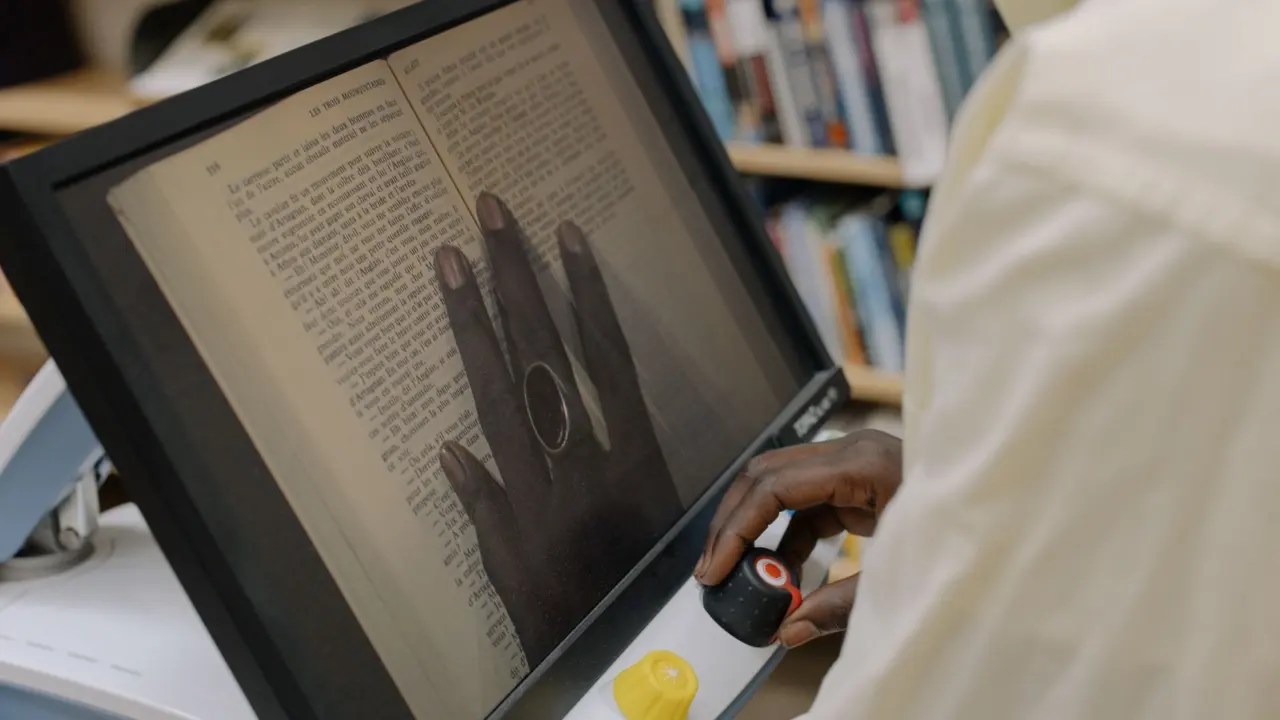
A desktop video magnifier is the type to consider when text work lasts longer than a few minutes. LSS Products lists desktop CCTVs as their own category, separate from portable and handheld electronic magnifiers, which reflects how different the two kinds of product are in use.
The reasoning is partly by contrast. Handheld magnifiers are described by LSS Products as helping with close work for short periods of time, so extended sessions are better handled by a unit that stays in one place on a desk with a larger display. A fixed camera and screen also remove the need to hold anything steady, which matters for anyone who finds a handheld tiring or unsteady.
Desktop units trade away flexibility. They need desk space, they do not travel, and they are the wrong answer for reading a menu in a restaurant. For a person whose main frustration is mail, books, forms or handwriting at home, they are the most natural starting point.
- Strength: a stationary setup suits longer sessions and does not depend on a steady hand.
- Limit: it only helps where it is installed, so a second, pocket-sized device is often still needed.
- Best suited to: readers and writers who spend sustained time on paper-based tasks at home.
Quick checks away from home
A handheld video magnifier is the practical pick for short tasks outside the home. LSS Products describes handheld magnifiers as small, lightweight and portable enough to slip into a purse, a pocket or a backpack, which is the core reason to choose one.
Lighting is the other deciding factor. LSS Products notes that illuminated handheld models help in places like dim restaurants and theatres, where a menu or playbill is hard to read. The same range includes LED, bar, dome and pendant styles, so the format can be matched to how the device will be carried and used.
Portable electronic magnifiers sit between handhelds and desktop units. They are carried between locations rather than held for a quick glance, and LSS Products groups them with handhelds in a single category. They suit someone who wants to read a page or menu comfortably on the move but finds a tiny display limiting.
- Strength: light enough to carry daily, and quick to use for labels, menus and prices.
- Limit: better for short bursts than for reading a whole chapter.
- Best suited to: shopping, dining out, and checking small print wherever the user happens to be.
Computer use and built-in software
For anything on a computer screen, screen magnification software is usually the first thing to try before buying hardware. It enlarges the screen content itself, so there is no camera, no extra device and nothing to carry. Windows Magnifier and macOS Zoom are the built-in options on the two main desktop systems, and they are the natural starting point for anyone searching for screen magnification software on Windows.
Software works well when the work is digital: email, web pages, spreadsheets and documents. It does not help with printed material, because it has no camera to read a page. A person who reads paper mail and also works on a computer will typically want software plus a device from the sections above.
Built-in tools are enough when text only needs to be larger and the user is comfortable adjusting settings. Consider paid or dedicated software only when the built-in option no longer keeps up with the person’s vision or workload. Checking the built-in settings costs nothing, which makes it the sensible first test.
Can a smartphone replace a dedicated magnifier?
A smartphone camera can stand in for a magnifier for occasional use, but it is a trade-off rather than a full replacement. The teacher-shared app list describes several downloadable apps that turn an iOS device into a magnifier.
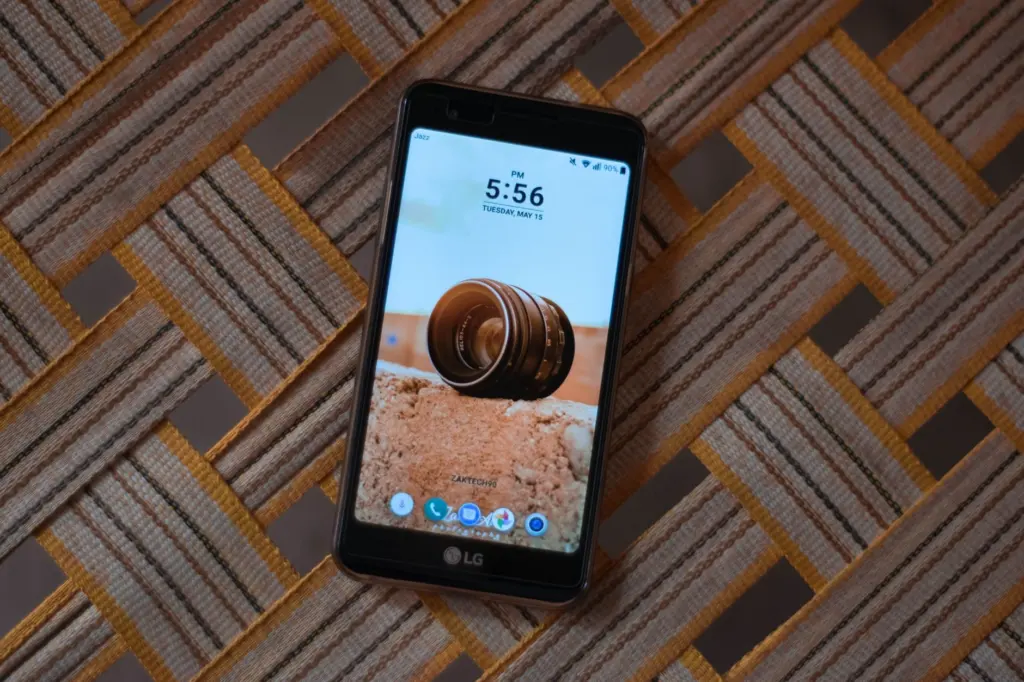
The apps differ in what they offer, according to that list:
- MagLight+: magnifies up to 10x, with the option to turn the light on or off.
- Magnificent: increases magnification up to 16x and offers colour filter modes.
- SRC Magnifier: free, and combines many features usually found in dedicated portable handheld electronic magnifiers.
- See It: a handheld video magnifier that streams a real-time video feed from the device camera, priced at $0.99.
- VisionAssist: can be connected wirelessly to an Apple TV or computer monitor for extra large viewing.
The low or zero cost of these apps makes them a sensible trial before spending on hardware, and a useful backup afterwards. A dedicated magnifier remains the better choice when the device will be used daily, for long periods, or by someone who finds a phone screen too small or awkward to hold over text.
Features that matter most
Contrast and colour modes, zoom range and display size are the features that most affect day-to-day comfort. Colour filter modes are offered even in app form, as the Magnificent app shows, so any dedicated device should do at least as well. Reversed or high-contrast views suit readers who find black text on a white page glaring, and they are worth trying before buying.
Screen size matters most for reading speed and comfort. VisionAssist’s ability to connect wirelessly to an Apple TV or computer monitor shows that a larger external display is a recognised way to get extra large viewing from a small device. For a dedicated unit, a bigger screen suits sustained reading, while a smaller one suits a pocket. Autofocus is worth testing in person, since a device that struggles to refocus when moved across a page becomes tiring quickly.
Magnification range and level of vision
No single magnification figure fits everyone, because low vision varies. A teacher-shared low-vision resource defines it as a visual impairment that cannot be corrected through surgery, pharmaceuticals, glasses or contact lenses, and notes it can affect people of all ages but is primarily an issue with older adults.
The practical consequence is that the right range is found by trying text at different sizes rather than by reading a specification. For reference, the app examples above reach 10x and 16x, which shows that phone-based tools cover a wide span. A person whose needs are close to those limits should try dedicated hardware and software in person, ideally with guidance from a low-vision specialist, rather than buying on specification alone.
Choosing by task
Start from the task that causes the most difficulty, then add devices only where needed.
- Reading books and mail at home: a desktop video magnifier, since handhelds are described as suited to short periods of close work.
- Menus, labels and price tags: an illuminated handheld or portable electronic magnifier, particularly for dim venues.
- Email, web pages and documents: the built-in magnification on the computer, tried before any purchase.
- Trial or backup: a free or low-cost phone app, such as SRC Magnifier or See It at $0.99.
Magnification has limits. When enlarged text no longer keeps pace with sight loss, the better tool may be spoken output, covered in the best screen reader for blind users comparison. Where tactile reading is the goal, the best refreshable braille display guide covers that route.
Frequently asked questions
Is a free app enough, or is a dedicated device worth buying?
A free app such as SRC Magnifier is enough for occasional spot reading and for judging how much magnification helps. A dedicated device is worth buying when use is daily, prolonged, or when a phone is awkward to hold over text.
How much do magnifier apps cost?
The apps in the teacher-shared list range from free, in the case of SRC Magnifier, to $0.99 for See It. Prices for dedicated hardware vary by model and type, so compare them with the task each device will handle.
Can a magnifier show text on a larger screen?
Yes. Desktop video magnifiers are built around a large display, and the VisionAssist app can connect wirelessly to an Apple TV or computer monitor for extra large viewing.
Will glasses fix low vision?
Not by definition. Low vision refers to impairment that cannot be corrected through surgery, pharmaceuticals, glasses or contact lenses, which is why magnifiers and other aids are used.