Choosing the best screen reader for blind users starts with the device: NVDA is the free Windows option, JAWS suits workplace use with braille hardware, Narrator is built into Windows 11, and VoiceOver covers Apple devices.
Picture someone setting up a new laptop for study or work who needs speech output from day one. The right answer depends on cost, platform and how demanding the applications are. This guide sits within the wider range of assistive technology devices and compares the main desktop and Apple options on those terms.
Decision criteria before comparing
Four checks narrow the field quickly, and working through them in order avoids paying for features that will not be used.
- Confirm the operating system. NVDA, JAWS and Narrator run on Windows, while VoiceOver runs only on Apple devices. A reader cannot be moved between these platforms, so the device decides the shortlist before anything else does.
- Set a budget and a licence model. Some readers are free and some are sold by yearly subscription. A free reader costs nothing to trial, whereas a subscription only makes sense when a specific feature justifies it.
- List the applications that must work. Browsing and email place light demands on a reader. Enterprise software, PDFs and specialist workplace tools place heavy ones, and that is where the more expensive option earns its price.
- Check braille needs. Anyone who plans to connect a braille display should confirm that the reader supports it and how deeply.
Learning curve is the fifth consideration, and it is harder to measure. Gesture-based and rotor-based navigation on Apple devices takes practice, and a reader with a long history of workplace use tends to come with more depth to learn. The sections below apply these criteria to each tool.

How screen readers work
A screen reader is software that lets blind or visually impaired users read what appears on a computer screen. AccessibleWeb describes screen readers as the interface between the computer’s operating system, its applications and the user.
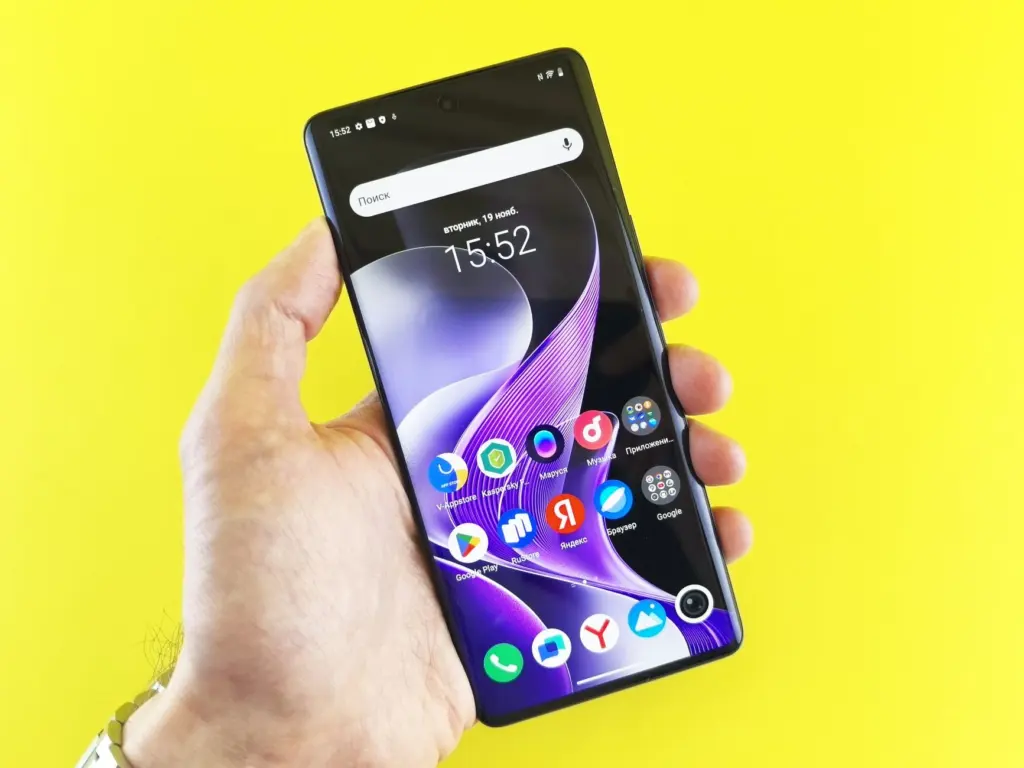
In practice the reader collects the text and controls that an application exposes, then sends that content to one of two outputs. A speech synthesizer turns the text into spoken words through speakers or headphones. A braille display turns the same text into raised braille cells that can be read by touch. The user moves through the screen with commands rather than by looking, and the reader announces whatever has focus.
The quality of the speech synthesizer affects day-to-day comfort, since a user may listen to it for hours. Narrator, for example, now supports natural voices, which suits people who find older robotic voices tiring. Headphones are a practical companion for most desktop users because they keep speech private and leave the room quiet.

Side-by-side comparison
| Screen reader | Cost and licence | Platform | Braille and notable features | Planning use |
|---|---|---|---|---|
| NVDA | Free, open source | Windows only | Braille support and an add-on store | Default starting point for a Windows user with no budget |
| JAWS | Yearly subscription, from $95/year | Windows only | Deep support for enterprise applications, PDFs and braille hardware | Workplaces and programmes where specialist applications must work |
| Narrator | Free, included with Windows 11 | Windows 11 | Natural voices, scan mode and braille displays; no scripting and limited braille features | Quick start on any Windows 11 machine, or a backup reader |
| VoiceOver | Free, included with the operating system | macOS, iOS and iPadOS; Apple devices only | Gesture and rotor navigation; web support varies by site | The natural choice for anyone who uses a Mac, iPhone or iPad |
Figures and feature descriptions come from the screen reader software category on Find Alternatives.
Windows screen readers
On Windows the decision is mostly between a free reader and a paid one, so the useful question is what the paid option adds for a particular user.
NVDA
NVDA is the free, open-source alternative to JAWS, and it is Windows only. It supports braille and has an add-on store for extending what it does. For most people who ask for a free screen reader for Windows, NVDA is the answer to try first, since there is no cost barrier and the add-on store lets it grow with the user’s needs.
JAWS
JAWS is a Windows-only reader sold from $95/year as a subscription. According to the Find Alternatives listing, it offers the deepest support for enterprise applications, PDFs and braille hardware, and it is listed as best for government and enterprise accessibility programmes. That makes it the best fit where an employer’s software or document workflow demands it, and a harder sell for someone who mainly browses the web and writes email.
Narrator
Narrator is included with Windows 11, so it costs nothing and needs no installation. It supports natural voices, scan mode and braille displays. Its limits are that it is less capable in complex apps, has no scripting and offers limited braille features. Narrator therefore works well for setting up a new machine, for occasional use and as a fallback, but anyone relying on a screen reader all day in demanding software should weigh NVDA or JAWS against it.
VoiceOver and mobile use
VoiceOver ships free with macOS, iOS and iPadOS, and it works on Apple devices only. A person who owns a Mac, iPhone or iPad therefore already has a screen reader and does not need to buy or install anything.
Navigation relies on gestures and the rotor, which takes practice to learn, and web support varies by site. Once learned, the rotor can speed up routine tasks. One accessibility write-up from MABSOP notes deep VoiceOver rotor support for efficient inbox management in an iOS mail app, which shows why people who spend much of their day in email may value it.
NVDA, JAWS and Narrator are Windows tools and VoiceOver is limited to Apple hardware, so none of them runs on an Android phone. Anyone choosing an Android handset needs a screen reader designed for that platform, and should check how it behaves with the apps they depend on before committing.
Which screen reader suits which user
- Windows user on a tight budget: NVDA gives a free, open-source reader with braille support, and Narrator is available alongside it for a quick start.
- Employee in an enterprise or government setting: JAWS is the stronger choice when enterprise applications, PDFs and braille hardware are part of the job, and the yearly subscription is the price of that depth.
- Casual Windows 11 user or new-machine setup: Narrator is already installed. Treat it as a starting point rather than a long-term tool for complex software.
- Apple device owner: VoiceOver is the only practical choice on a Mac, iPhone or iPad, and its cost is included with the device. Allow time for the rotor.
- Someone who does not need speech output: People with remaining sight may get more from a magnifier, so see the guide to the best screen magnifier for low vision. Readers who want text read aloud to support reading, rather than because of blindness, may find assistive technology for dyslexia more relevant.
There is no single winner across every platform. On Windows, NVDA is the best value and JAWS the most capable for workplace use. On Apple hardware the built-in reader is the sensible default.
Frequently asked questions
| Question | Answer |
|---|---|
| Is there a free screen reader for Windows? | Yes. NVDA is free and open source, and Narrator comes included with Windows 11. |
| What is the best screen reader for blind users on Windows? | It depends on the work. NVDA suits most people who want a free reader, while JAWS is the stronger choice for enterprise applications, PDFs and braille hardware. |
| How do NVDA, JAWS and Narrator differ in cost and features? | NVDA is free with an add-on store and braille support. JAWS is a yearly subscription from $95/year with the deepest enterprise and braille support. Narrator is free with Windows 11 but has no scripting and is less capable in complex apps. |
| Can VoiceOver be used on a Windows PC? | No. VoiceOver is limited to Apple devices, so a Windows PC needs NVDA, JAWS or Narrator. |