| Need | Device type | What it does | Planning use |
|---|---|---|---|
| Reading a computer screen without relying on sight | Screen reader | Converts text on a computer screen into audible speech | Start here when speech can replace visual reading of the screen. |
| Reading digital text as braille | Refreshable braille display | Translates digital text into braille format | Choose it when braille is the way you prefer to read. |
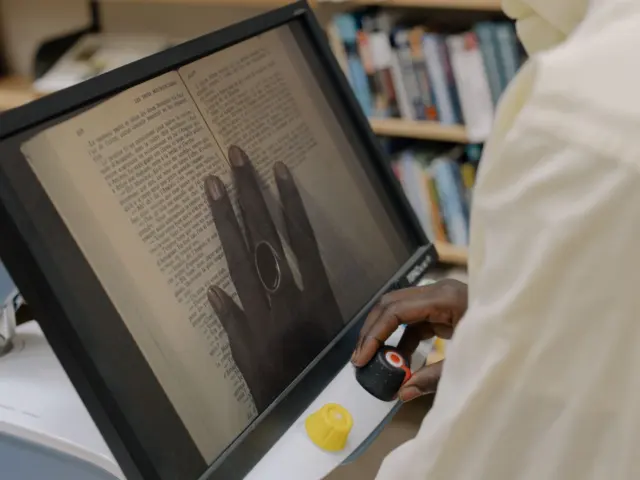
| Low vision and printed material | Video magnifier (magnifiers and CCTV) | Magnifies printed material or projects it onto a screen | Suits readers who still use their sight and need print larger. |
| Hearing loss | Hearing aid or cochlear implant | Hearing aids amplify sound; cochlear implants stimulate the auditory nerve | A personal-fit decision, so compare options in a dedicated buying guide before committing. |
| Speech disability | Speech-generating or other communication device | Communication devices are listed as assistive technology for speech disabilities | Match the device to how the person communicates and where it will be used. |
| Limited hand and arm mobility | Adaptive keyboard or mouse | Specialised input devices for limited hand and arm mobility | Judge by what the hands and arms can do comfortably, not by the feature list. |
| Reading difficulties or dyslexia | Text-to-speech software | Reads digital text aloud | Check software you already own before buying anything new. |
Device types and examples above follow the Inclusive Schools Network overview of assistive technology and the federal Long Term Care Navigator list of assistive technology tools.
Assistive technology devices are best chosen by the task that has become difficult, such as reading a screen, hearing a conversation or typing, not by product name. Pick the need first, then the device type, then compare models.
This guide sorts devices by the need they meet, so you can find your starting point and then follow the detailed guides. For a wider map of categories, see our overview of the types of assistive technology.
Where to start: main types of assistive technology devices
Assistive technology covers anything that helps a person do a task that is otherwise hard or impossible. The federal Long Term Care Navigator lists eyeglasses and magnification devices for low vision and communication devices for speech disabilities among its examples. The Inclusive Schools Network adds screen readers, braille displays, hearing aids, cochlear implants, text-to-speech software and alternative keyboards and mice. Taken together, that gives you six broad groups to work through:
- Vision and reading: screen readers, braille displays, magnifiers and video magnifiers.
- Hearing: hearing aids, cochlear implants and supporting listening and captioning tools.
- Speech and communication: speech-generating and other communication devices.
- Computer access: adaptive keyboards, alternative mice and similar input devices.
- Reading and learning support: text-to-speech software and related programs.
- Everyday consumer devices: smartphones, voice command technology and certain software.
Most people need only one or two of these groups. Someone with age-related hearing change and some sight loss, for example, may look at hearing devices and a magnifier and ignore the rest. Use the sections below as a menu rather than a reading list, and skip to the group that matches your need.
A sensible order for deciding
Start with the task, not the diagnosis. A task such as reading a letter, following a meeting or sending an email points to a device type far more reliably than a condition name does. The Council for Learning Disabilities makes the same point from the education side: selecting the right device takes careful analysis of the person, the tasks, the settings and the device itself. Plan on testing a short list in the place where it will actually be used, not choosing from a product page alone.
Vision and reading devices
Vision devices split into two families. One replaces looking with listening or touch, and the other makes what you can see easier to use. Knowing which family fits is the single most useful decision in this group, and it depends on how much usable sight you have and how you prefer to read.
Screen readers
A screen reader is software that converts text on a computer screen into audible speech, according to the Inclusive Schools Network. The Council for Learning Disabilities describes the wider group as speech synthesis and screen reading systems, which includes web readers and e-books with text-to-speech. In practice this means a screen reader suits you when listening is a dependable way to take in what is on the screen, whether because you cannot see it or because looking at it for long is tiring.
Before comparing products, think about the work you do on the device. Email, documents and web pages place different demands on speech output than spreadsheets or specialist software do. Our best screen reader for blind users guide compares the options in detail.
Refreshable braille displays
A refreshable braille display translates digital text into braille format, as the Inclusive Schools Network describes it. It is the right tool when braille is your preferred way to read, because it lets you read the same digital text through touch rather than only through speech. That matters for tasks where you want to check spelling, structure or exact wording, which can be harder to judge by ear alone.
Treat a braille display as a companion to your computer or phone setup rather than a stand-alone replacement for it, and check what it connects to before you buy. When you are ready to compare models, the best refreshable braille display guide covers displays and note-takers together.
Video magnifiers and low vision aids
Magnifiers and CCTV systems magnify printed materials or project them onto a screen, which is how the Inclusive Schools Network groups them. A video magnifier belongs to that family. The federal Long Term Care Navigator also lists eyeglasses and magnification devices among its examples of assistive technology for low vision, so the simplest options sit alongside the electronic ones.
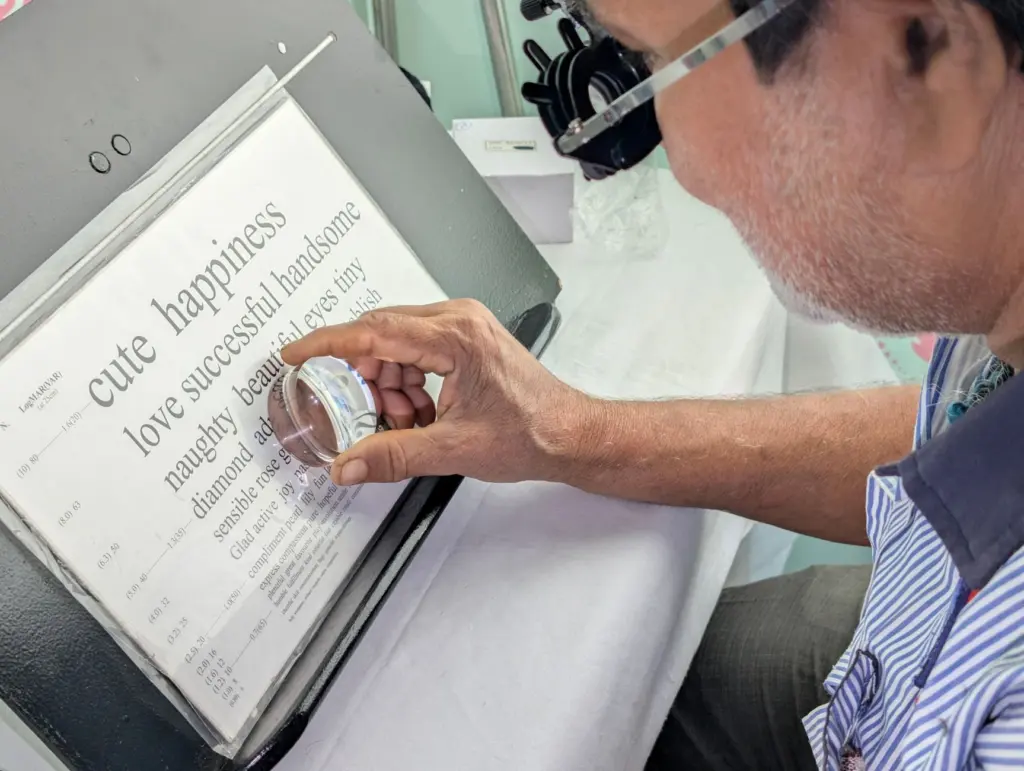
For printed material such as letters, labels and forms, a magnifier that shows the page enlarged on a screen is the natural fit. For on-screen work the question is different, because the content is already digital. If you want a wider tour of options, our guide to assistive devices for low vision sets them side by side, and the best screen magnifier for low vision guide looks at magnification on the computer itself.
Screen reader or magnifier?
The difference is the output. A screen reader turns on-screen text into speech, so the person listens. A magnifier enlarges print or projects it onto a screen, so the person still reads visually. A screen reader suits someone who cannot rely on sight for reading, while a magnifier suits someone who can read when text is large enough. People with fluctuating vision or eye fatigue sometimes want both, so judge by how comfortable reading is at the end of a long session, not at the start.
A braille display adds a third output, touch, and text-to-speech adds listening for people whose difficulty is with reading rather than with sight. The table below sets the four side by side.
| Device | How you take in the information | What it works from | Planning use |
|---|---|---|---|
| Screen reader | Listening | Text on a computer screen | Suits those who cannot rely on sight for reading. |
| Video magnifier or CCTV | Looking, with enlarged output | Printed material, projected onto a screen | Suits those with usable sight who need print larger. |
| Refreshable braille display | Touch | Digital text, translated into braille | Suits braille readers who want digital content in braille. |
| Text-to-speech software | Listening | Digital text read aloud | Suits people with reading difficulties or dyslexia. |
Output types follow the Inclusive Schools Network overview, with screen reading systems described by the Council for Learning Disabilities.
Hearing devices and captioning support
Hearing technology has two distinct jobs. One is making sound itself clearer or louder, and the other is turning speech into text so that you do not depend on sound alone. Many people end up using both, depending on the situation.
Hearing aids and cochlear implants
The Inclusive Schools Network describes hearing aids and cochlear implants as devices that amplify sound or stimulate the auditory nerve. A hearing aid is the usual starting point for hearing loss that sound amplification can help with. A cochlear implant works differently, by stimulating the auditory nerve, and belongs in a conversation with a hearing specialist rather than a shopping comparison.
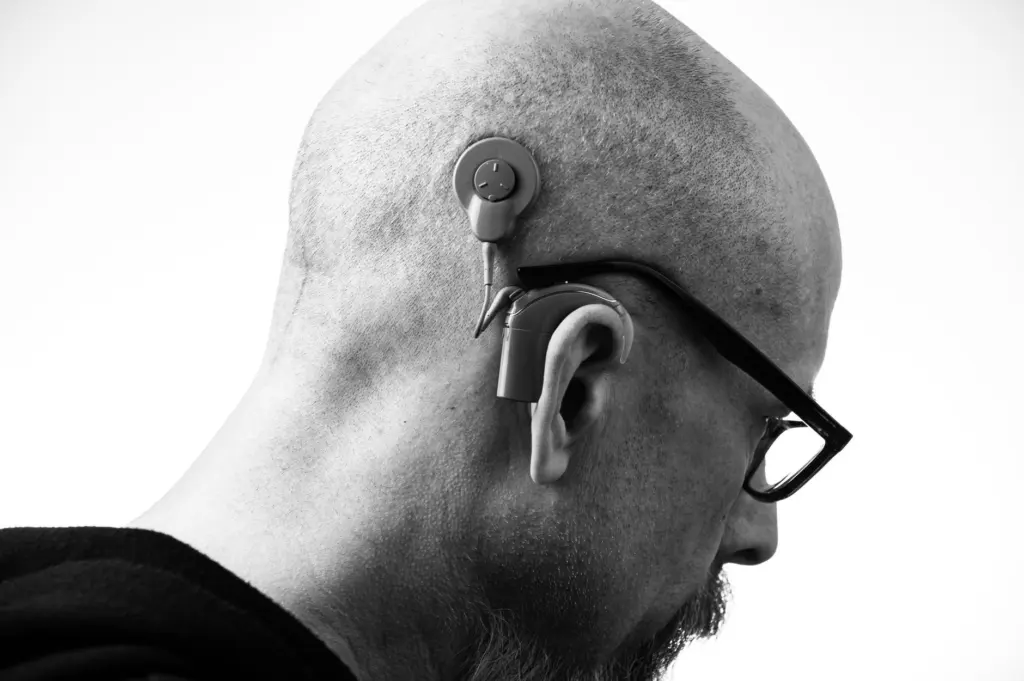
If you are weighing style, features and fit, read our guide on how to choose a hearing aid. If your question is about how you can buy one, the over the counter hearing aids vs prescription comparison deals with that choice.
Choosing for hearing loss
Choose by listening situations, not by features. List the places where you struggle, such as a quiet home, a busy restaurant, the telephone or a meeting room, and rank them by how often they come up. A device that suits one situation can disappoint in another, and your ranking tells you which compromise is worth accepting. The Council for Learning Disabilities points to the person, tasks and settings as the factors to analyse, and that approach carries over to hearing.
Equally important, ask for a trial period or a demonstration where one is offered, and wear the device in your hardest listening situation before you decide.
Listening and captioning tools
Sound amplification is not always enough, or not always the right answer. For lectures, meetings and group conversations, separate listening equipment can help, and our guide to assistive listening devices for hearing loss explains how those differ from hearing aids. For people who prefer to read speech, captioning and transcription apps turn conversation into text, and the best speech to text app for deaf guide compares them. The Council for Learning Disabilities notes that speech-to-text on smartphones is an example of assistive technology now built into mainstream devices, which means a capable captioning tool may already be in your pocket.
Speech and communication devices
The federal Long Term Care Navigator lists communication devices for individuals with speech disabilities among its examples of assistive technology. A speech-generating device is the best-known type, and it gives a person a way to produce spoken output when their own speech does not meet their needs.
This is the group where the person, the setting and the physical setup matter most. A communication device has to be reachable and usable from the position the person is in during the day, so seating, mounting and access method are part of the choice, not extras to sort out afterwards. A device that performs well on a desk may be awkward on a wheelchair mount or in bed.
What to weigh
- Communication style: choose a device that matches how the person already communicates, then build from there, rather than starting with the most feature-rich option.
- Physical access: think about how the person will select items, which links directly to the keyboards and input devices in the next section.
- Where it will be used: home, school, work and out and about each place different demands on battery life, volume and portability.
- Who will support it: a device that family, carers or colleagues understand is more likely to be used every day.
Because needs in this group are individual, seek advice from the professionals supporting the person and arrange a trial before buying. The loan and demonstration routes covered later in this guide are particularly worthwhile here.
Computer access and reading support
Many people never need specialist hardware for sight or hearing, but struggle with the physical or reading demands of ordinary computing. This group covers alternative input and software that reads text aloud.
Adaptive keyboards and alternative mice
The Inclusive Schools Network describes alternative keyboards and mice as specialised input devices for people with limited hand and arm mobility. The choice is wide, so begin with what the person can do comfortably and without pain: how far the hands reach, how accurately fingers press, and how long typing can continue before fatigue sets in.

The practical test is a real working session. Type a typical paragraph, move the pointer through a typical task and note where strain starts. A layout that looks ideal in a photograph can still tire the wrists or shoulders, and only a trial will show that. Where a standard keyboard is almost workable, a change of device may be enough, and where it is not, a more specialised option is worth pursuing.
Text-to-speech and reading difficulties
Text-to-speech software reads digital text aloud, which the Inclusive Schools Network says helps students with reading difficulties or dyslexia. The Council for Learning Disabilities counts e-books with text-to-speech and web readers among speech synthesis and screen reading systems. This means the same underlying idea, speech from text, serves people with very different needs, from blindness to dyslexia.

For people with dyslexia, the useful questions are where reading happens and which tools already exist there. Start with what is built into the software you use daily before adding new programs. Our guide to assistive technology for dyslexia lists the full range and explains how to match tools to reading tasks.
Everyday smart devices as assistive technology
Consumer devices can work as assistive technology. The federal Long Term Care Navigator states that smartphones, voice command technology and certain types of software all fall under the assistive technology umbrella. The Council for Learning Disabilities says many assistive technology products are now integrated into mainstream consumer technology, with speech-to-text on smartphones as its example.
That has two practical consequences. First, an everyday phone or tablet can be a low-cost way to test whether a type of support helps, before paying for a specialist product. Second, a mainstream device is not automatically accessible, so check what it offers for your specific need instead of assuming it is enough. Specialist hardware still earns its place where a task is demanding, for example heavy braille reading or a communication system used all day.
Phones for older users and people with low vision
For many people the phone is the first assistive device they use, long before they identify it as one. Screen size, voice control and ease of reading matter most, and our guide to the best smartphone for seniors covers phones that suit older users and those with low vision.
Wearables, travel and safety
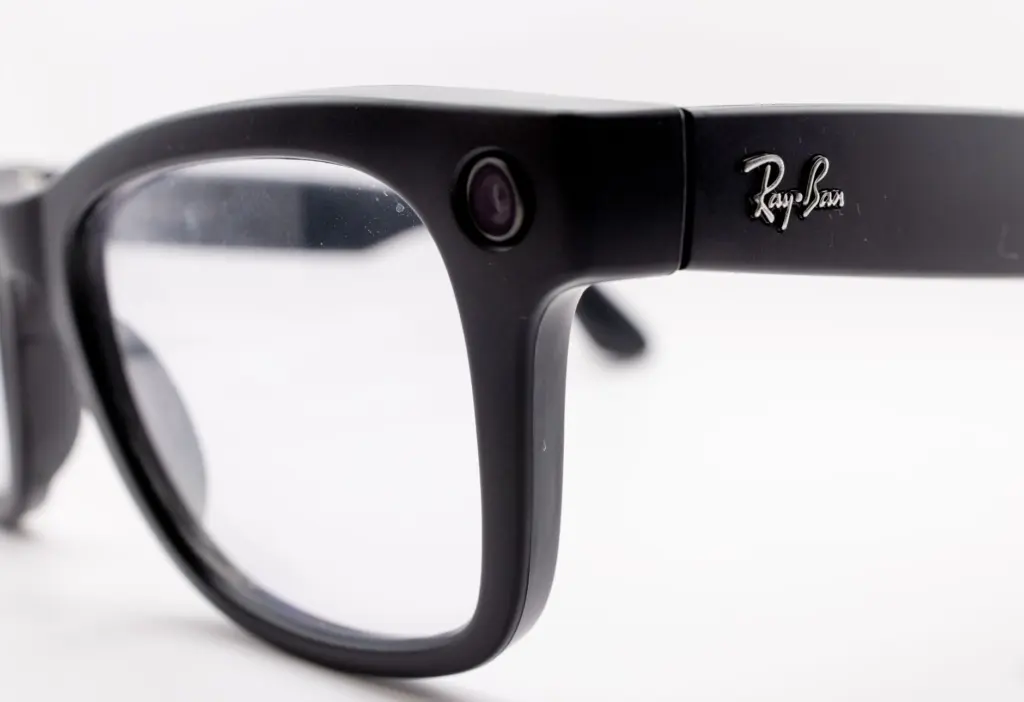
Wearable and mobility devices are a fast-moving area. If you are curious about camera-based help for sight loss, smart glasses for visually impaired users are compared in a dedicated guide, and a smart cane for blind travellers is covered alongside other electronic travel aids. For personal safety at home, the best medical alert systems guide looks at call-for-help devices.
Where memory or thinking is the difficulty rather than a sense or a physical movement, the support looks different again. Our guide to assistive technology for memory loss covers reminders and routines, and it is a separate decision from the sensory devices above.
Choosing, trying and paying for a device
The best way to avoid an expensive mistake is to try before you buy and to know what a device will cost over time. The practical steps below apply across every group in this guide.
- Name the task. Write down the specific thing that is hard, such as reading post, following a conversation or typing for a long period.
- Note where it happens. Home, work, school and travel can each need a different answer.
- Pick a device type from the sections above, then shortlist a few models.
- Trial the shortlist in the real setting, using your own tasks, before you commit.
- Review after a few weeks. Keep the device only if it makes the task easier in daily use, and check whether features you ignored should have been part of the decision.
Try before you buy
The federal Long Term Care Navigator highlights device demonstration and short-term loan programmes that let people try out equipment before purchasing. It names the network of State Assistive Technology Act Programs as a good place to start, which is a United States arrangement. If you are in the UK, ask your NHS clinician, employer or education provider which trial and funding routes apply to your situation, since each has its own rules. Where a retailer or charity offers a demonstration, use it, particularly for communication devices and anything worn on the body.
What devices cost
Prices vary enormously by device type. The Council for Learning Disabilities puts the range of assistive technology from free up to as much as $1,500 for an optical character recognition system, although that figure comes from a source revised in 2013 and current prices need checking with suppliers. Treat it as an indication that the spread is wide rather than as a price list. Specialist hardware such as braille displays and communication devices should be quoted by suppliers for your exact configuration, and the quote should say what is included, such as mounting, software and support.
Judge value by how often a device will be used, not just by its price. A cheaper device that sits in a drawer costs more than a pricier one used daily.
Frequently asked questions
Are there low-cost assistive apps?
Yes. Augsburg University’s assistive technology pages list apps and programs that are free or cost approximately less than $25, so an app is often a sensible first trial before buying dedicated hardware.
Can I buy a used device or spread the cost?
In the United States, the Long Term Care Navigator describes reuse programmes that provide gently used devices at substantial savings and financing options such as cash loan programmes. Ask local suppliers and charities whether similar schemes operate near you.
Can insurance pay for assistive technology?
The Council for Learning Disabilities says Medicare, Medicaid and private insurance companies in the United States may help finance assistive technology if it serves a medical need. UK readers should ask their clinician which routes cover their case.
Do schools have to consider assistive technology?
In the United States, the Council for Learning Disabilities reports that under IDEA public elementary and secondary schools must consider assistive technology for children with disabilities. Families elsewhere should ask their school or local authority what support is available.