| Need | Typical devices and tools | Planning use |
|---|---|---|
| Seeing and reading | Screen readers, refreshable braille displays, screen magnification software | Pick speech, touch or enlargement according to how the person reads best. |
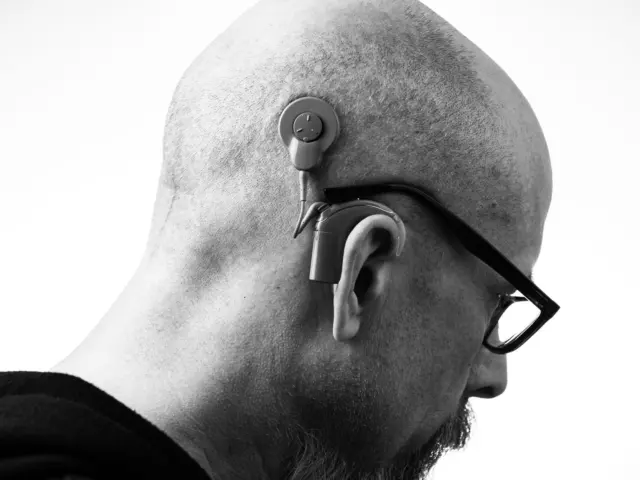
| Hearing | Closed captioning and subtitling, hearing aids | Captions suit media and meetings; amplification suits everyday conversation. |
| Moving and computer access | Ergonomic keyboards, keyguards, trackballs, switches, environmental control systems | Change how commands are entered before replacing the whole computer. |
| Communicating | Picture communication boards up to computer-based systems with synthesised speech | Match the system to the person’s current ability, then review as needs change. |
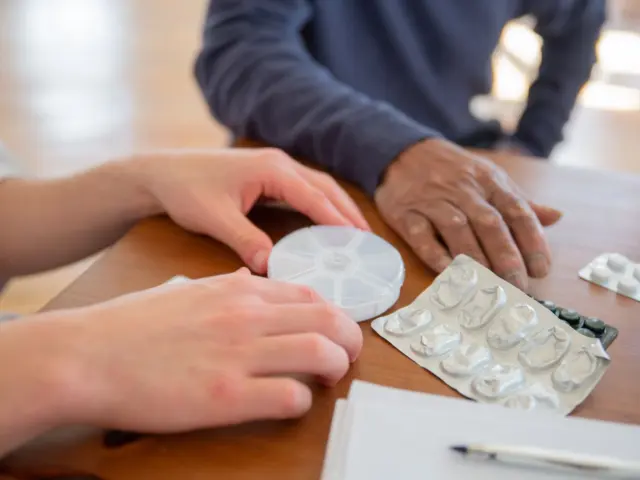
| Remembering and learning | Highlighters, organizers, timers, digital tools | Try a simple cue first and add a digital tool only if the simple one is not enough. |
The groupings above draw on the NSW Government’s assistive technology explainer and on Understood’s overview of assistive technology.
The main types of assistive technology are easiest to compare by the need they meet: seeing, hearing, moving, communicating, remembering and learning. Start with the task that is hard, then choose between a simple tool and a digital one.
For product-level guidance after this overview, the assistive technology devices hub collects the deeper pages.
Choosing by need: what changes in practice
Sorting devices by need keeps the search focused on the barrier rather than on the diagnosis or the gadget. Understood describes assistive technology (AT) as tools that help people with disabilities learn, communicate or function better. That wording is deliberately broad, so the useful question is what the person is trying to do and cannot do comfortably.
- Start with the barrier. Reading small print, following a conversation, pressing keys and being understood are different problems. Each points to a different family of tools.
- Expect more than one tool. A person can face several barriers at once, for example reading and typing, so one need rarely means one purchase.
- Match the form of output. Speech, touch, enlarged text and captions all deliver the same information in different ways. The right one depends on how the person takes in information best.
- Get help choosing. Evaluation and training are part of the field, not an optional extra, as the assessment section below explains.
Seeing and reading
Vision-related AT spans software that speaks, hardware that raises braille, and tools that enlarge. The right choice depends on whether the person reads best by listening, by touch or by seeing text made bigger.
Screen readers
A screen reader is software that converts digital text into synthesised speech, according to the NSW Government. Rhode Island’s assistive technology programme calls screen readers essential for computer users who are blind. For a blind person who uses a computer, this is usually the first tool to set up, because everything else on the screen depends on it.
Refreshable braille displays
A refreshable braille display gives tactile output of on-screen text by converting digital text into braille. It works by mechanically lifting small rounded plastic or metal pins to form braille characters, and it refreshes one line at a time, as described by the Rhode Island programme. Some note takers, such as BrailleNote and BrailleSense, pair a refreshable braille display with a braille-style keyboard, according to Baruch College’s disability services. A display suits braille readers who want to read text with their fingers rather than listen to it.

Video magnifiers and screen magnification
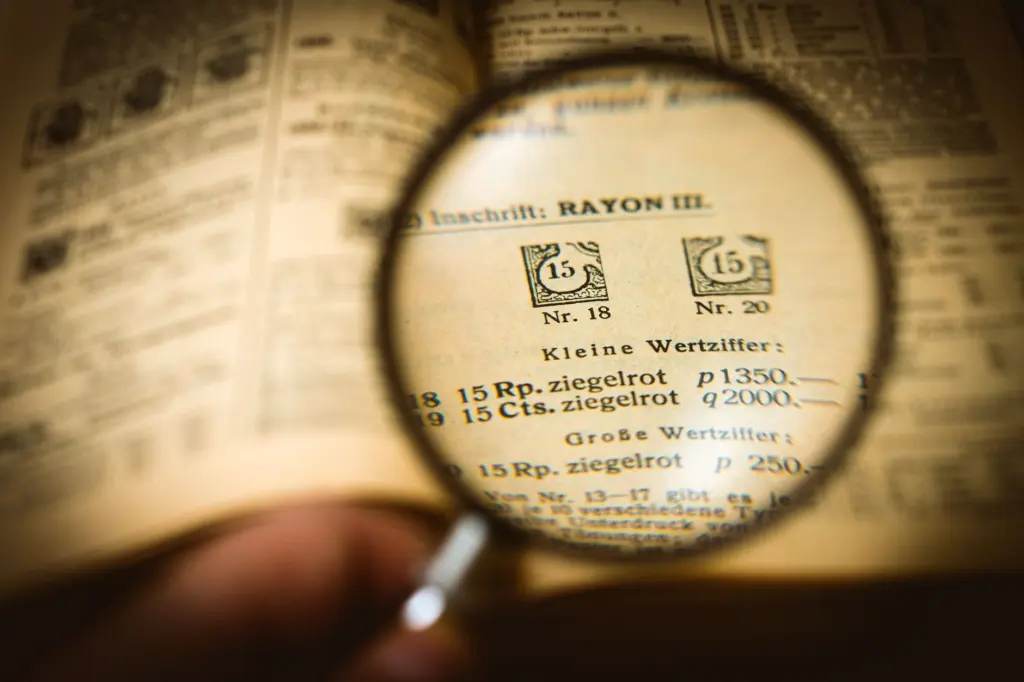
Screen magnification software enlarges on-screen content so it is more readable, per the NSW Government. For paper, a video magnifier does the same job. Baruch College lists the Ruby HD and Explore as small, portable video magnifiers that increase text size on hard copy material. Choose enlargement over speech when the person still reads visually and wants to keep doing so. The page on assistive devices for low vision compares these options in more detail.
Hearing
Hearing support divides into amplification, text alternatives and radio-style listening aids. The first two are the most widely recognised.
- Hearing aids. Hearing aids amplify sounds so people with hearing impairment can communicate and interact, as Be Accessible puts it. They suit people who want to keep using spoken conversation.
- Closed captioning and subtitling. The NSW Government notes these primarily aid people who are deaf or hard of hearing, by giving a text version of audio. They suit video, meetings and broadcasts where amplification alone may not be enough.
- Transmitter and receiver systems. The Roger System is described by Baruch College as a transmitter and receiver pair designed for hard of hearing individuals, which makes it relevant in classrooms and other group settings.
These tools can be combined. Someone who wears a hearing aid may still want captions on recorded video.
Moving and computer access
Physical-access AT changes how a person gives commands to a device, so the computer itself can often stay the same. This is the cheapest line of thinking to try first, because swapping an input device is a smaller change than swapping a system.
Adaptive keyboards and alternative input
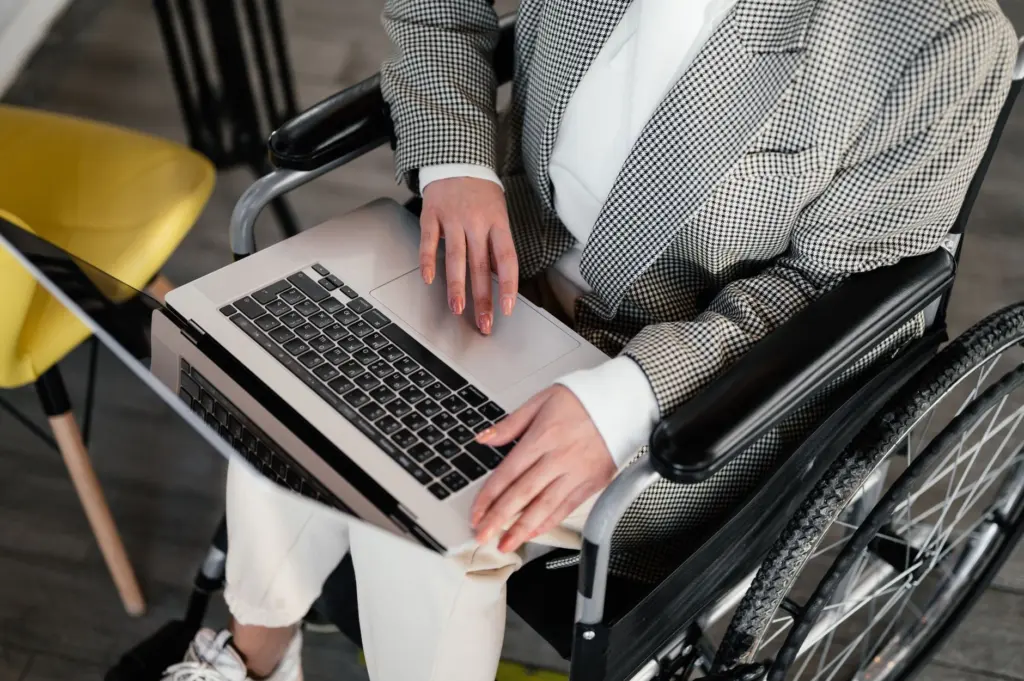
The NSW Government lists ergonomic keyboards, keyguards, trackballs and switches as physical-access tools that let users enter commands more comfortably. An adaptive keyboard is the natural starting point for someone who finds standard keys hard to press accurately. A trackball or a switch is a different route for someone for whom pointing or typing is the main difficulty.
Environmental control systems
Beyond the computer, environmental control systems let a person with a physical disability operate home appliances, lights and other devices, per the same NSW Government explainer. They suit people whose main difficulty is reaching or operating things around the home rather than using a computer.

Communicating
Communication aids exist for people who cannot rely on speech alone. The NSW Government describes these devices as ranging from simple picture communication boards to complex computer-based systems with synthesised speech.
A speech-generating device sits at the high-tech end of that range. Be Accessible places it alongside alphabet charts, symbol cards and picture boards at the other end. The range means the decision is not simply about whether to buy a device. A person may begin with boards or cards and move to a speech-generating system later, or use both.
Memory, learning and organising
Cognitive and learning support is where low-tech tools do the most work. Understood lists highlighters, organizers and timers as simple AT tools. For many people, a cue that is visible and always in the same place is a more reliable first step than software that needs setting up.

Digital options add reading and comprehension help. Baruch College describes Kurzweil 3000, a text-to-speech program that reads and highlights text aloud, as helping to increase comprehension and memory retention for people with learning and cognitive disabilities, in its classroom technology list. For memory difficulties in particular, our guide to assistive technology for memory loss goes further.

How the categories fit together
Several overlapping groupings exist, and none is the only correct one. Be Accessible says examples generally fall into four categories: visual, motor, auditory and cognitive. This article splits communication out and treats learning and memory together, because readers usually shop by the task they cannot do. The two approaches describe the same tools and differ only in labels.
Low-tech and high-tech
The other useful split is by complexity. Understood says AT can be as high-tech as a computer or as low-tech as a pencil grip. Highlighters, organizers and timers sit at the low end, and digital devices at the other. Low-tech suits needs that a simple cue or grip can solve. High-tech suits needs, such as reading screen content aloud, that only software or electronics can meet.
Devices and services
The same source explains that AT has two parts: devices, which are the actual tools, and services. Services include evaluation by a doctor or specialist, training and device repair. A good device with no training or repair behind it is a weaker choice than it looks, so factor support into any decision.
Getting an assessment and trying devices
An assessment is the most reliable way to move from a broad category to the right device. Understood lists evaluation by a doctor or specialist among AT services, and it also suggests looking for trial options. Trying a tool before committing helps because needs vary even within one category, for example between a person who reads braille and one who prefers speech.
Bring a clear description of the tasks that are difficult, plus any devices already in use, to the evaluation. This makes the shortlist more specific than a category name.
Frequently asked questions
Does a screen reader need a braille display?
No. A screen reader can produce synthesised speech or braille output, according to the NSW Government. A refreshable braille display is the hardware option for people who want to read the output by touch.
What is a Roger System?
Baruch College describes it as a transmitter and receiver pair designed for hard of hearing individuals, in its list of commonly used classroom technologies.
How can a student ask for assistive technology?
One route is to ask the school to recommend it, as Understood suggests. Free trials are another way to test a tool first.