The best tablets depend on the job: a low-cost Amazon Fire or Walmart Onn model with parental controls for children, a lighter screen for reading, and an iPad Pro with Apple Pencil support for drawing.
Picture a household with a child who wants games, a parent who reads in the evening and a student sketching in class. One tablet rarely suits all three, so this list is grouped by use. For wider context on choosing devices, see our consumer electronics buying guide.
Quick picks by use
- Kids: a budget Amazon Fire or Walmart Onn tablet, with parental controls set up before the child uses it.
- Reading: a lighter, smaller-screen tablet for long hand-held sessions, or a larger display if you also watch video.
- Drawing and notes: an iPad Pro with an Apple Pencil, or a Samsung Galaxy Tab if you already own a Galaxy phone and its S Pen.
- Typing and productivity: any tablet with a keyboard case confirmed as compatible with that exact model.
Tablets for kids
For a child, a budget tablet with working parental controls is the sensible starting point. Consumer Reports points shoppers spending under $200 towards Amazon’s Fire tablets or Walmart’s Onn line. The same guide says most tablets from Amazon, Apple and Samsung let you set up parental controls that block access to certain apps and websites and limit screen time.
That makes the cheaper models easy to justify as a first tablet. You get the controls that matter for young users without paying a premium price. Apple’s entry-level iPad costs at least $450, according to the same buying guide. That outlay makes sense mainly if you specifically want iPadOS for the household.
Parental control options differ by vendor and model, so check the maker’s own documentation for the tablet you shortlist. Then configure app and website restrictions and screen-time limits before handing it over.
Tablets for reading
For reading, screen size and weight matter more than raw power. Consumer Reports notes that a larger display can provide a better experience for watching videos and reading. It also says tablets with displays of 8 inches or smaller tend to weigh less than a pound, which is easier to hold in one hand during a long session.
If you read mostly text and want portability, CNET’s tablet coverage says a 6-inch Kindle arguably makes the best choice for e-reading on the go. That is an e-reader rather than a full tablet, so it suits people who want books and little else. A full tablet is the better fit if the same device must handle magazines, video and apps.
Heavier large-screen models are a poorer match for reading in bed. Apple lists the 13-inch iPad Pro at 1.28 pounds (579 grams) for the Wi-Fi model, against 0.98 pound (444 grams) for the 11-inch, in its iPad Pro specifications. A weight like that is fine on a desk or stand but tiring held overhead.

Tablets for drawing and notes
Drawing on a tablet needs three things: a screen that supports a stylus, the matching stylus and a compatibility check. Consumer Reports observes that adding a stylus gives you a convenient way to take notes or create digital art. It also warns that not every Apple Pencil variant works with every iPad.
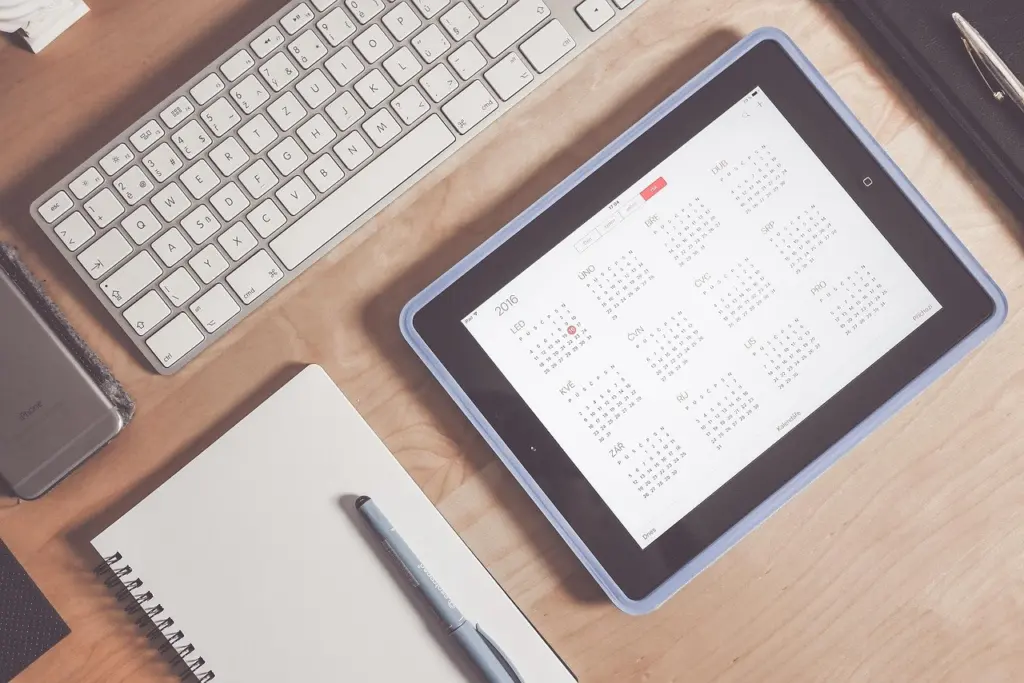
Apple’s specifications show that both sizes of the iPad Pro support Apple Pencil Pro and Apple Pencil (USB-C). That makes the iPad Pro the clearest premium choice for drawing. It suits illustrators and students who want a large canvas and are happy to buy into Apple’s accessories.

Samsung is the alternative if you prefer Android. Consumer Reports notes that a Samsung Galaxy phone and a Samsung Galaxy Tab use the same S Pen stylus. A household that already owns a Galaxy phone and its pen may find that a tablet adds little extra accessory cost. Whichever brand you pick, match the stylus to the exact tablet model before ordering.
iPad Pro: 11-inch and 13-inch compared
The iPad Pro is the premium all-rounder on this list, and choosing between its two sizes comes down to portability against canvas.
| Model | Resolution | Weight (Wi-Fi) | Stylus support | Planning use |
|---|---|---|---|---|
| iPad Pro 11-inch | 2420 x 1668 pixels at 264 ppi | 0.98 pound (444 grams) | Apple Pencil Pro and Apple Pencil (USB-C) | Easier to carry and hold; suits reading, note-taking and travel |
| iPad Pro 13-inch | 2752 x 2064 pixels at 264 ppi | 1.28 pounds (579 grams) | Apple Pencil Pro and Apple Pencil (USB-C) | Larger drawing and multitasking area; best used on a desk or stand |
Figures are from Apple’s iPad Pro technical specifications.
Both sizes share the same pixel density, so the larger model gives you more screen area rather than a sharper picture. Choose the 11-inch if the tablet travels in a bag every day. Choose the 13-inch if drawing or split-screen work is the main reason you are paying a premium.
iPadOS or Android
The operating system decides where your apps come from. Consumer Reports explains that Apple’s iPadOS is tied to the Apple App Store and Google’s Android to the Google Play Store. Check that the apps you rely on, such as reading, drawing or children’s learning apps, are available in the store your tablet uses.
The choice also follows your existing devices. If you already carry an iPhone, iPadOS keeps everything in one ecosystem. A Galaxy phone owner gets the same logic from a Galaxy Tab and the shared S Pen.
Storage and prices
Most people do not need much storage. Consumer Reports says most people can get by with 64GB of storage, or even 32GB. It suggests 128GB or more if you keep a lot of video, photos or large apps on the device. Reading, browsing and streaming need far less than offline video libraries and large drawing files.
At the top end, Apple offers up to 2TB on the iPad Pro line. That is only worth paying for if you work with very large files locally. The same guide, updated September 17, 2026, puts new tablets at $60 to $2,500, depending on storage and specifications. Treat prices as a snapshot and recheck current listings before buying, because retailer pricing and storage options change.
Keyboard cases and accessories
A keyboard case turns a tablet into a typing device. That is useful when the larger display is also used for productivity apps. Consumer Reports advises checking compatibility before buying accessories, because a keyboard case or stylus made for one model may not fit or pair with another.
Buy the tablet first, confirm its exact model name, and then match the case and stylus to it. Budget tablets are the most likely to have a narrow choice of accessories, so look at what is available before you commit.
Decision checklist
- Name the main job first: a child’s device, an evening reader or a drawing tool.
- Pick the screen size that suits how you will hold it, then check its weight.
- Confirm the stylus or keyboard case works with the exact model.
- Match storage to your media habits, then recheck the price on the day you buy.
- Set up parental controls or accessibility options before first use.
A few common questions remain, covering battery life, Fire tablets and built-in accessibility.
Frequently asked questions
How long does a tablet battery last?
Consumer Reports says most tablets have at least 10 hours of battery life, and it delivers nearly 20 hours on a single charge for the 13-inch iPad Pro in its tablet buying guide. Apple rates the iPad Pro at up to 10 hours of web browsing or video on Wi-Fi and up to 9 hours on a cellular data network, per its specifications.
Do Amazon Fire tablets run Android apps?
Fire OS is based on Android but linked to the Amazon Appstore, according to Consumer Reports. Apps therefore come from Amazon’s store rather than the Google Play Store, which Android tablets use.
Do iPads have built-in accessibility features?
Yes. Apple lists built-in accessibility features on the iPad Pro that support vision, mobility, hearing and cognitive disabilities in its iPad Pro specifications.
If you are building out a wider setup, our guides to the best soundbars and best smartwatches cover the neighbouring categories.